Compare Two Lists: Find Missing Items, Matches and Duplicates
Compare spreadsheet columns or exported IDs, distinguish shared items from duplicates, handle case and spaces, and share a runnable inventory example.
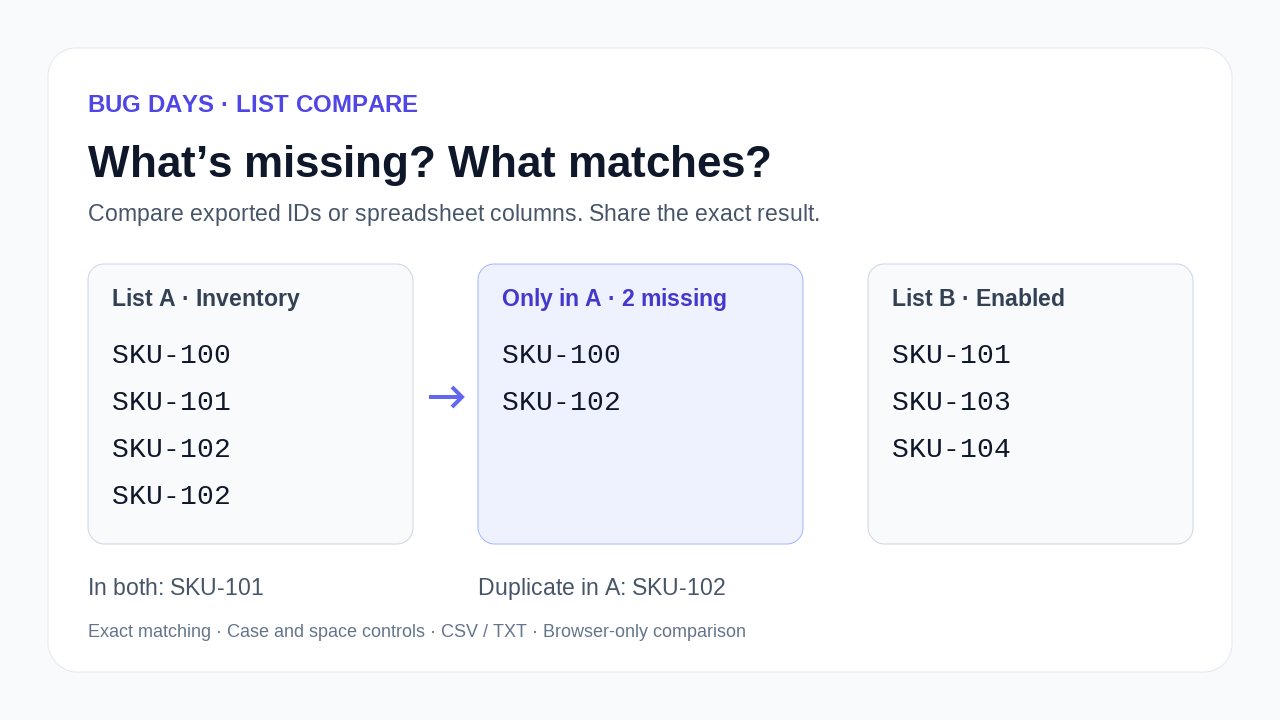
You have an inventory export and a list of products enabled in another system. Which SKUs are missing? Comparing row positions gives noisy results when the exports use different orders. A list comparison checks whether each value exists anywhere in the other list.
Try a reproducible inventory comparison
Open the missing-SKU example ↗
This synthetic example opens List Compare with List A as the inventory and List B as the enabled products. Only in A is selected, so the result is SKU-100 and SKU-102. Anyone opening the link can reproduce the same result and inspect every view.
List A: inventory export
SKU-100
SKU-101
SKU-102
SKU-102
List B: enabled products
SKU-101
SKU-103
SKU-104| Result | Items | Meaning |
|---|---|---|
| Only in A | SKU-100, SKU-102 | Inventory items missing from enabled products |
| In both | SKU-101 | Present in both exports |
| Only in B | SKU-103, SKU-104 | Enabled products missing from inventory |
| Duplicates in A | SKU-102 | Repeated inside the inventory export |
Common items are not the same as duplicate rows
SKU-101 is shared across both lists, but occurs only once in each. SKU-102 repeats inside List A but does not appear in List B. Intersection answers “what is in both?” Duplicate views answer “what repeats within this input?” Mixing those questions can hide a data-quality problem.
List A has four nonblank items, three unique values and one extra repeated occurrence. With Dedupe results on, Only in A contains two distinct values. Turn it off to keep all three qualifying rows, including the repeated SKU-102. All unique becomes All items and combines both lists without removing repeats. This is still a membership comparison, not a subtraction of quantities: matching rows from A are kept whenever their value appears anywhere in B. The duplicate views always list each repeated value once.
Compare two Excel or Google Sheets columns
Copy one column into each input, one item per line. Leave out a header unless it is a value you want compared. Or open a local CSV or TSV export: under More matching & file options, choose a column number (starting at 1) and optionally skip the header. Files are read in your browser, not uploaded. Skip empty files is on by default, so an empty file will not overwrite a list you already entered. To check which entries in column A are absent from column B within Excel, a typical exact-membership formula is:
=COUNTIF($B$2:$B$100,A2)=0Fill the formula down next to column A. TRUE means no match in the specified B range. Excel’s COUNTIF documentation notes that matching is not case-sensitive and criteria can contain wildcards. List Compare matches literal strings: an asterisk is an asterisk, not a wildcard. Its default is case-sensitive, so enable Ignore case when that is your intended rule.
Choose matching rules before interpreting a difference
Trim spaces removes surrounding whitespace from each item by default. Turn it off if surrounding spaces are significant. Ignore case lets Apple and apple match while retaining the first spelling in the result. Neither option removes internal spaces or punctuation.
Numbers are kept as text, not parsed as JavaScript numbers. By default, the IDs 0012 and 12 remain different. Ignore leading zeros makes these match without rounding long identifiers; it applies only to digit-only values, not signed numbers, decimals or IDs such as SKU-0012. Ignore extra internal spaces makes Jane Doe match Jane Doe. Normalize Unicode NFC matches equivalent composed and decomposed characters, such as two representations of é. These matching options preserve the original result spelling; they do not perform fuzzy matching or remove accents.
Ignore blank lines skips empty and whitespace-only rows by default. Turn it off to compare them as entries. With Trim spaces on, a whitespace-only row becomes an empty entry; with it off, the whitespace remains literal. The preview marks these entries visibly, while Copy and downloads retain their actual characters. A final newline terminates the last row rather than inventing an extra empty one.
Input order preserves the first appearance of each value. Natural ascending order places SKU-2 before SKU-10; changing the order does not change membership. Swap A and B reverses which side is considered missing while keeping both original lists available.
Copy, export and share the result
Copy result and TXT preserve the selected result text, including trailing empty entries when blank-line matching is enabled. CSV follows the quoting rules for commas and double quotes in RFC 4180. Formula-like values are prefixed with an apostrophe to keep spreadsheet software from executing them; use Copy or TXT when exact original characters are required. Report JSON includes all seven result views, source counts and matching settings. Search narrows the on-screen preview but does not narrow copied or downloaded results.
Share comparison includes both lists, matching options, result order and the selected view. An embedded link carries the state in its URL fragment without storing the lists on the server. Optional stored short links explicitly upload the shared state. Anyone with a link can read it, so remove private data before sharing. Comparing and opening UTF-8 text files happen locally.
For larger lists, comparison runs in a background worker and can be cancelled. Each input supports up to 5 MiB and 100,000 included items; CSV/TSV files support up to 100,000 data rows. Quoted commas and doubled quotes are supported. Malformed CSV or cells containing line breaks produce a clear error instead of silently splitting one value into several items. Exceeding a limit shows an error rather than returning an incomplete “match” result.