How to Convert a Terminal Table to Excel Without Broken Columns
Turn ASCII pipes, Unicode box drawing, PostgreSQL results, or aligned console output into editable Excel, CSV, HTML, Word, and printable tables.
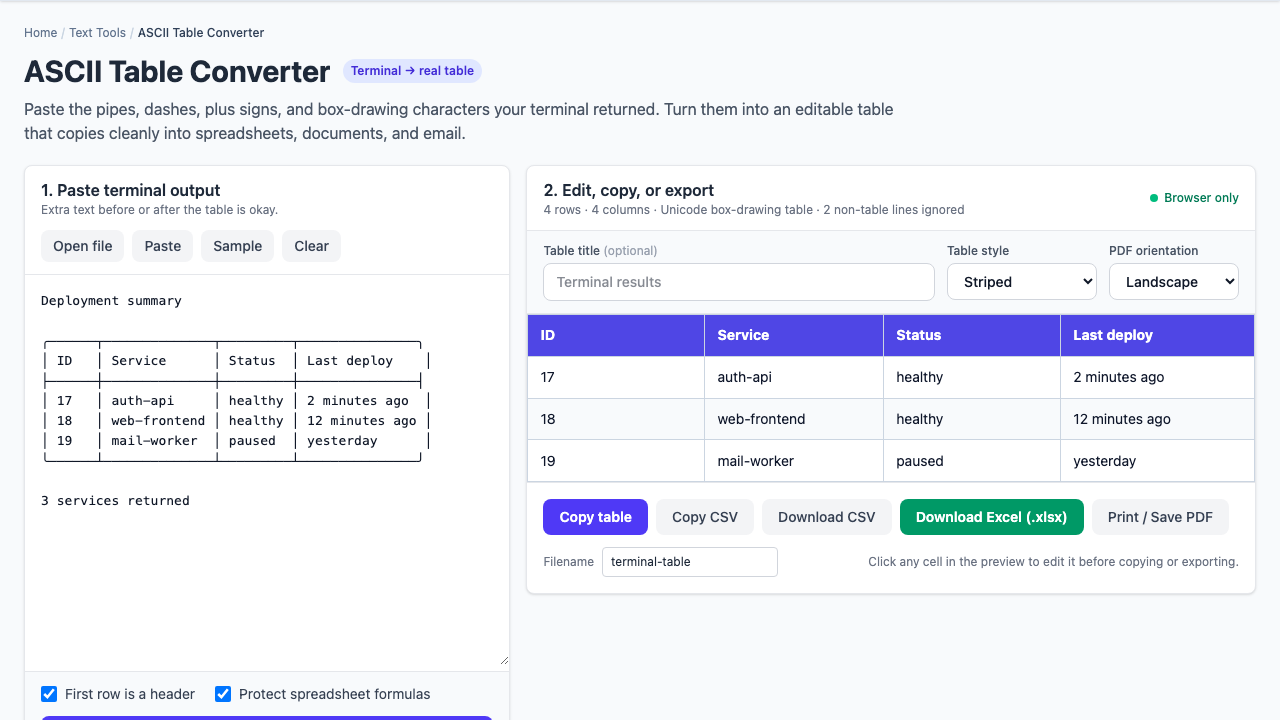
Terminal tables are designed for human eyes, not spreadsheet parsers. Pipes look like column boundaries, rows are padded with spaces, Unicode lines make a convincing grid, and then a direct paste into Excel deposits the whole circus into one column.
The clean route: parse the visual borders into actual cells, review ambiguous rows, then copy a real HTML/TSV table or export CSV/XLSX. Do not repair every column by hand.
Why the table is not already a table
Deployment summary

┌────┬──────────────┬─────────┬────────────────┐
│ ID │ Service      │ Status  │ Last deploy    │
├────┼──────────────┼─────────┼────────────────┤
│ 17 │ auth-api     │ healthy │ 2 minutes ago  │
│ 18 │ web-frontend │ healthy │ 12 minutes ago │
│ 19 │ mail-worker  │ paused  │ yesterday      │
└────┴──────────────┴─────────┴────────────────┘

3 services returned
This is a sequence of characters. The terminal does not attach row or column semantics. A useful converter must recognize border rows, split data rows at the correct separators, preserve meaningful spaces, and ignore surrounding headings or row counts.
Paste the whole useful excerpt
Do not spend time deleting every top border, separator, title, or footer before conversion. A parser can usually identify the strongest rectangular region and report ignored non-table lines. Keep enough context to verify that the detected header and row count are correct.
- Copy the terminal output as plain text.
- Paste it into the terminal-table converter.
- Confirm the detected format, row count, and column count.
- Mark whether the first row is a header.
- Edit any ambiguous cell in the preview.
Choose the output for where it is going
| Output | Use it when | What it preserves |
|---|---|---|
| Copy table | Pasting into Excel, Word, Outlook, or another rich editor | HTML table structure plus a plain TSV fallback |
| CSV | Importing into data tools, scripts, or databases | Values and standard quoting; little presentation |
| XLSX | Handing someone a ready-to-open workbook | Typed-safe cells, headers, widths, filters, and styling |
| Print / PDF | Attaching a clean snapshot to a ticket or report | Visual presentation, not editable data semantics |
CSV is simple until a value contains punctuation
A valid CSV exporter must quote fields containing commas, double quotes, or line breaks and must escape quotes inside quoted fields. Joining cells with commas is not enough. UTF-8 handling also matters when service names, customer data, or database values contain non-ASCII characters.
XLSX is often the better handoff when the recipient explicitly asked for “an Excel file.” CSV is the better interoperable format when another system will ingest the result.
Protect spreadsheets from formula execution
Spreadsheet applications may interpret a cell beginning with =, +, -, or @ as a formula. Terminal output can contain attacker-controlled values such as usernames, imported labels, or API data. A value that looked inert in the console can become active after export.
Enable the spreadsheet formula guard when the source is not fully trusted. It prefixes risky cells so the spreadsheet treats them as text. Review whether preserving exact byte-for-byte values or protecting the person opening the workbook is more important for the workflow.
Know when aligned columns are ambiguous
Tables with explicit pipes or box-drawing characters are easier to parse than columns aligned only with spaces. In fixed-width output, a long value may wrap onto another line, two spaces may occur inside a legitimate value, or proportional-font copying may destroy alignment.
- Prefer the command’s native CSV or JSON output when it exists.
- Use the table converter when the visual table is the only artifact you have.
- Review wrapped descriptions and multiline cells before exporting.
- Compare the detected row count with any footer emitted by the command.
The reverse workflow is useful too
Tickets, README files, chat, and terminal demos often need a text table rather than a spreadsheet. The companion ASCII table generator accepts CSV, TSV, JSON arrays, and HTML tables and produces classic ASCII, Unicode, PostgreSQL-style, or Markdown output with width and wrapping controls.
A thirty-second quality check
- The header is not accidentally included as the first data row.
- No title, border, or “rows returned” footer became a cell.
- Wrapped text stayed with its original row.
- Leading zeros in identifiers were preserved where necessary.
- Potential spreadsheet formulas are guarded.
- The exported row and column counts match the preview.
Local workflow: pasted terminal text and generated workbooks are processed in the browser. The source data is not uploaded to Bug Days.