Recover a DBeaver Saved Password from credentials-config.json
Find DBeaver credentials-config.json, recover legacy or default saved connection credentials locally, and understand when master passwords or secure storage cannot be recovered.
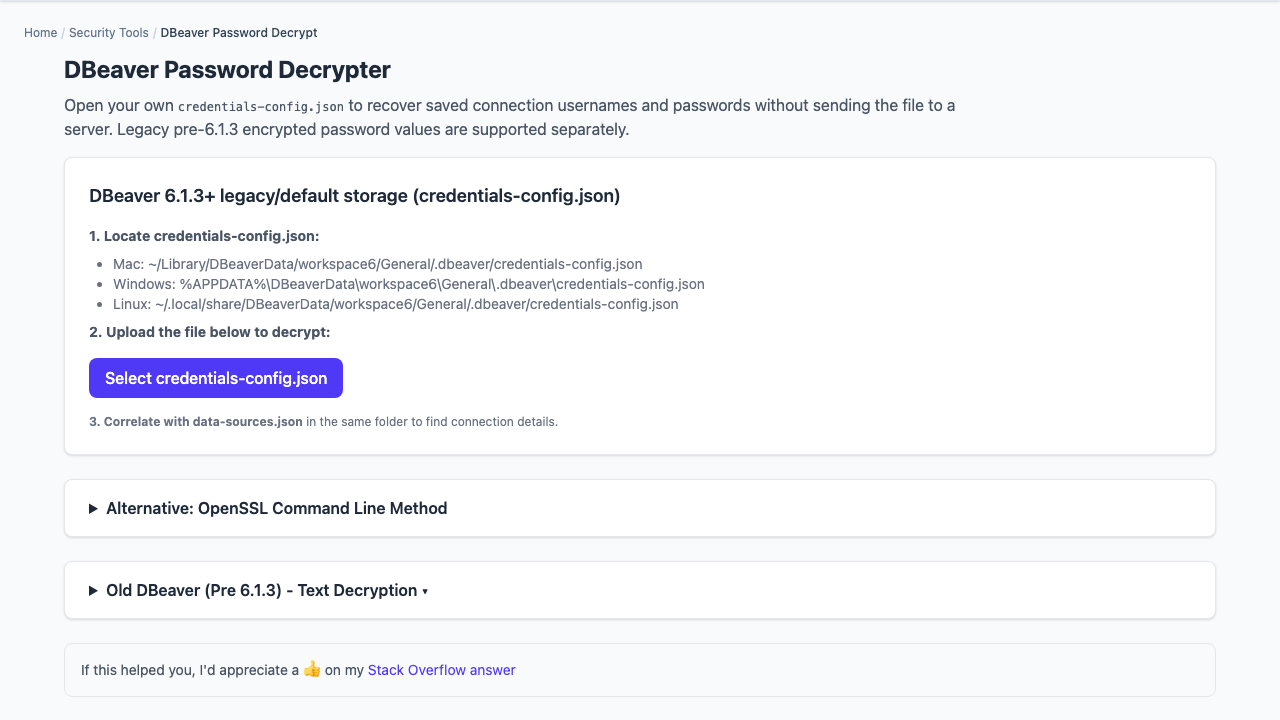
If you own a DBeaver workspace but lost a saved connection password, the first task is to identify how that workspace stored it. Older and default DBeaver storage can contain recoverable encrypted credentials; a master password, operating-system keychain, or enterprise secret provider changes that answer completely.
Find the workspace credential file
Common DBeaver workspace locations include ~/Library/DBeaverData/workspace6/General/.dbeaver/ on macOS, %APPDATA%\DBeaverData\workspace6\General\.dbeaver\ on Windows, and ~/.local/share/DBeaverData/workspace6/General/.dbeaver/ on Linux. Look for credentials-config.json. The adjacent data-sources.json can help map a connection ID to its host, port, driver, and database name.
Recover only credentials you are authorized to use
Select your file in the DBeaver Password Decrypter. The file is read and decrypted in the browser. Nothing is uploaded, and the page intentionally has no sharing feature. Recovered passwords are masked until you choose Show or Copy for an individual row.
For a pre-6.1.3 workspace, use the legacy encrypted value section instead. It handles the historical value format separately from the file-based workflow.
Know what cannot be recovered
This workflow does not bypass a master password, an operating-system secure keychain, an enterprise password provider, or a custom encryption key that you do not possess. Those mechanisms are designed to require the authorized key or account. In that situation, reset the database credential through the appropriate administrator or secret-management process rather than looking for a client-side workaround.
Rotate and document after recovery
Treat a recovered password like any other exposed credential: confirm who should retain access, rotate it if its history is uncertain, and store it in the approved secret manager. Once access is restored, use the Schema Explorer to turn authorized DDL into an ER diagram and data dictionary for the team.